Shipments
Create and manage shipments via Shippo or manually
Overview
Understanding shipment types and workflow.
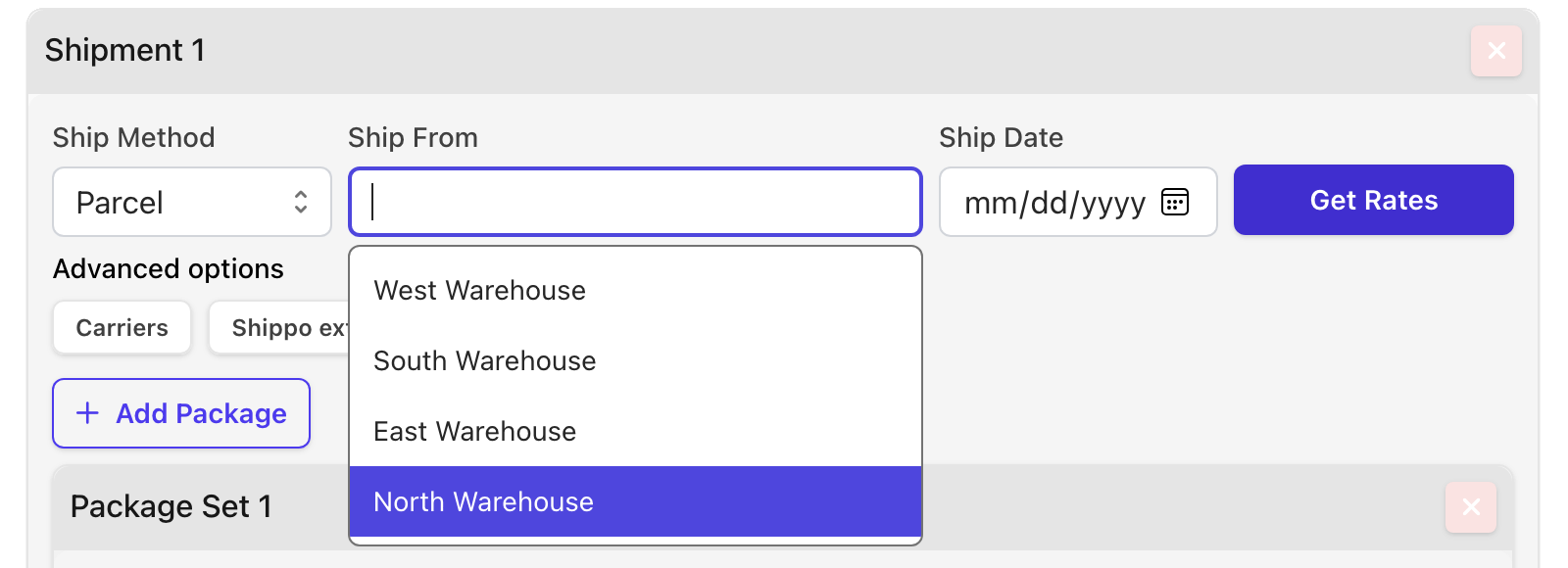
Shipments are the core of your shipping workflow. Each shipment represents packages being sent from one location to another, using either Shippo (with carrier labels) or Manual (manual confirmation).
Ship Methods
| Field | Format | Description |
|---|---|---|
| Shippo | Type |
Shipments that use carrier services (USPS, FedEx, UPS, etc.) through Shippo. Get rates, purchase labels, and track packages. |
| Manual | Type |
Shipments managed outside of carrier integrations. Manually confirm when shipped, optionally with QR code scanning. |
Key Shipment Fields
| Field | Format | Description |
|---|---|---|
| Ship Method | Select |
Choose between Shippo (carrier shipping) or Manual (manual shipping). |
| Shipping Location | Select |
Ship from address (Invoices/Estimates) or ship to address (Purchase Orders). |
| Ship Date | Date |
When you plan to ship. Optional for Shippo, helpful for scheduling. |
| Packages | Section |
Package dimensions, weight, and quantity. |
| Line Items | Section |
Items being shipped in the order. |
Advanced Options
Additional options available when creating Shippo shipments:
Carrier Selection
Choose which carrier accounts to use for rate quotes. By default, all active carriers are queried. Learn more
Shippo Extra Options
Add reference numbers, delivery instructions, signature requirements, and other carrier-specific options. See all options
Customs Declaration
For international shipments, override account defaults or add additional customs information. Required fields are automatically populated from line items with customs data. Customs Items guide
Working with Multiple Shipments
Splitting Shipments
You can split an order into multiple shipments if items ship at different times or from different locations. Each shipment can have its own ship date, packages, and shipping method.
Multiple Packages in One Shipment
Add multiple packages to a single shipment when items ship together but in separate boxes. You can split line items across packages or set quantity to ship identical packages.
Shipment Workflow
Create Shipment
Add ship method, location, packages, and line items
Get Rates (Shippo only)
Compare shipping costs from different carriers and service levels
Purchase Label / Confirm Shipped
For Shippo: buy the shipping label. For Manual: mark as shipped
Download Documents
Get shipping labels, packing lists, commercial invoices, and other documents